

The Wood Connectors Calculator allows you to quickly verify the compatibility and capacity of joist hangers. You can:
- Define joist size, grade, and loads manually
- Automatically link to an existing joist member in your project.
Setting Up Joist Properties
On the left side of the calculator, you’ll see the Joist Properties section. You have two options: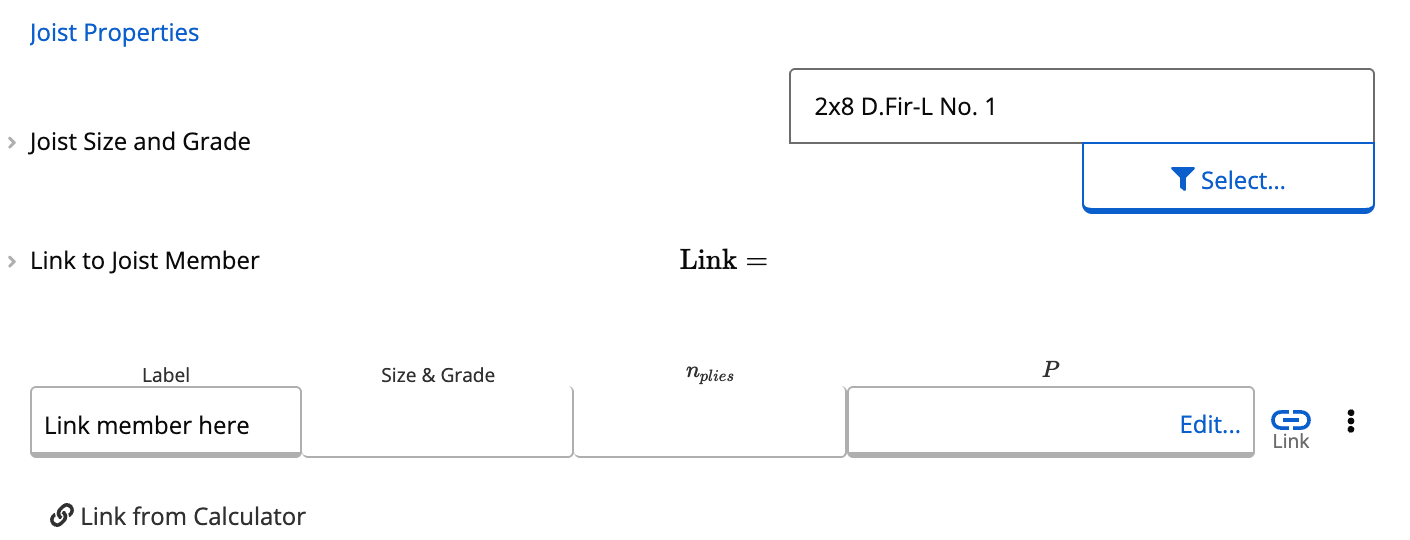
Option A: Manually Select Joist Size and Grade
- Open the joist size selector.
- Choose from the database of wood sections.
Example: type “2x8” → select Douglas Fir No. 1. - Define the supporting member, which can be another wood size/grade.
Example: 2×8 Douglas Fir No. 1 supporting member.
Option B: Link to a Joist Member
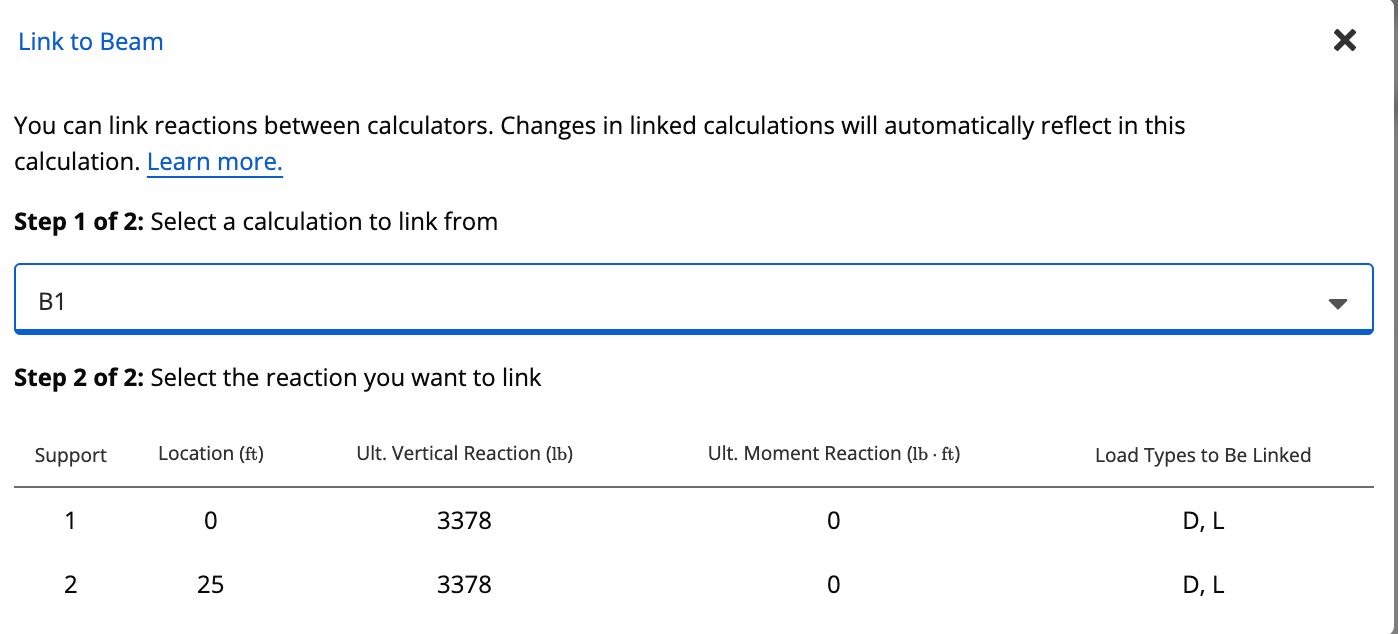
This works the same as how loads link in many of our other calculators. When using Load Linking, the calculator automatically imports relevant joist properties and reactions.How to Link
- Click Link to Joist Member → Link.
- Select the appropriate member (e.g., Beam 1 if previously created).
- The calculator automatically:
- Pulls in the joist size and grade
- Imports the reaction loads
- Hides manual joist size and load inputs.
Entering Loads
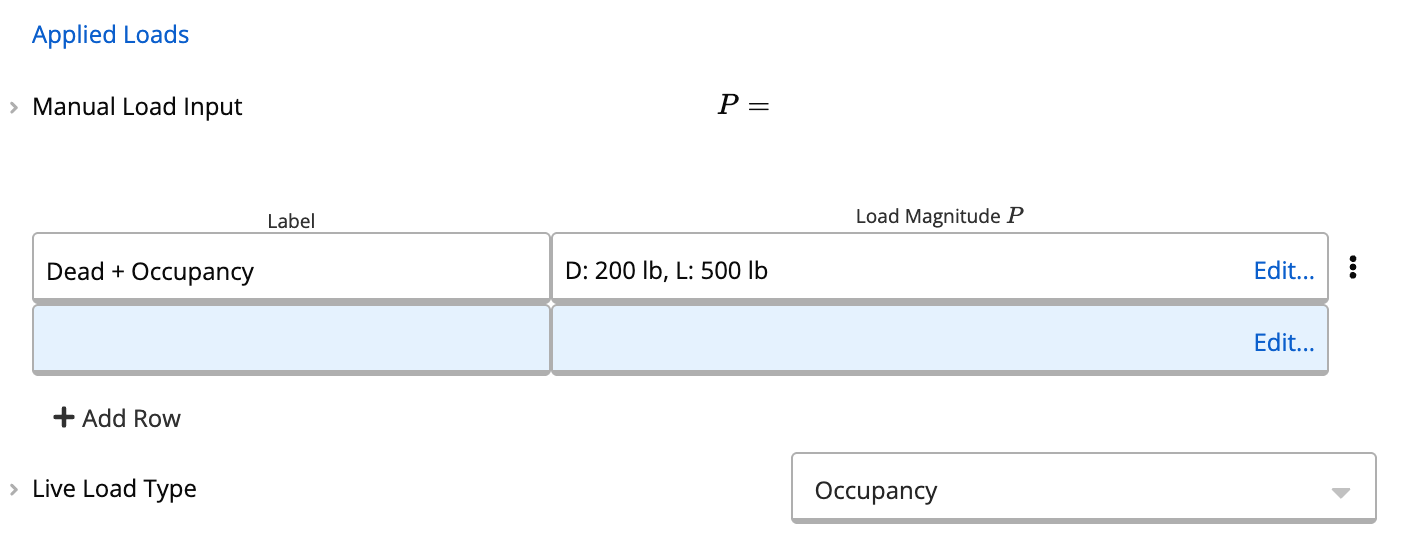
Below the joist properties is the Load Input panel. These inputs represent the reaction forces from the joist onto the connector. Typical loads include:- Roof live load
- Dead load
- Snow/rain load
- Floor load
Selecting a Compatible Connector
If the initially displayed connector isn’t compatible (e.g., a 2x4 hanger with a 2x8 joist), use the connector selector:- Open the Member Selector.
- Type the intended joist depth (e.g., “2x8”).
- Review available connector models.
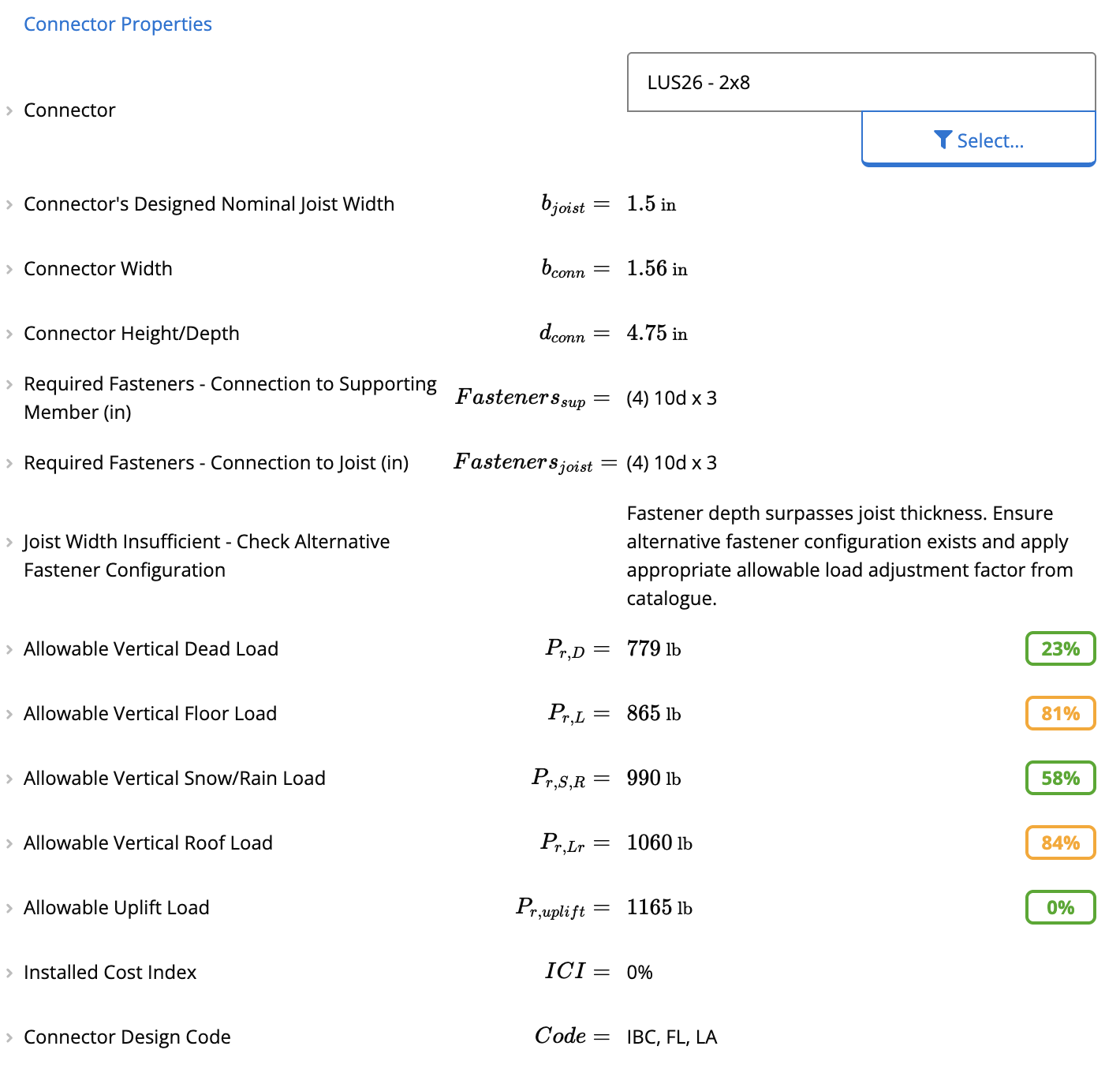
Selecting Simpson Strong-Tie LUS26:
- The calculator confirms that allowable vertical loads (dead, live, snow/rain) all pass.
- Installed Cost Index (ICI) shows 0%, indicating the lowest-cost option in the library.
- Required fasteners are displayed (e.g., 4× 10d nails on both joist and supporting member).
Adjusting Connector Choice After Linking
Because linking may change joist depth or loads, the previously selected connector may no longer be compatible. Example:- The LUS26 becomes incompatible because the joist hanging depth must be at least 60% of joist depth to prevent rotation.
- Use the selector to view compatible alternatives:
- LUS28 (face-mounted) - compatible and lowest ICI (Installed Cost Index).
- JB210A - works for certain conditions.
- HU210TF - available but may not pass load checks.
- Governing checks
- Required fasteners (e.g., 6 fasteners into supporting member, 4 into joist)
- Load verification results
Completing the Design
After linking and selecting a suitable hanger:- Confirm all governing load checks pass.
- Review fastener requirements.