

What Is a Shared Table?
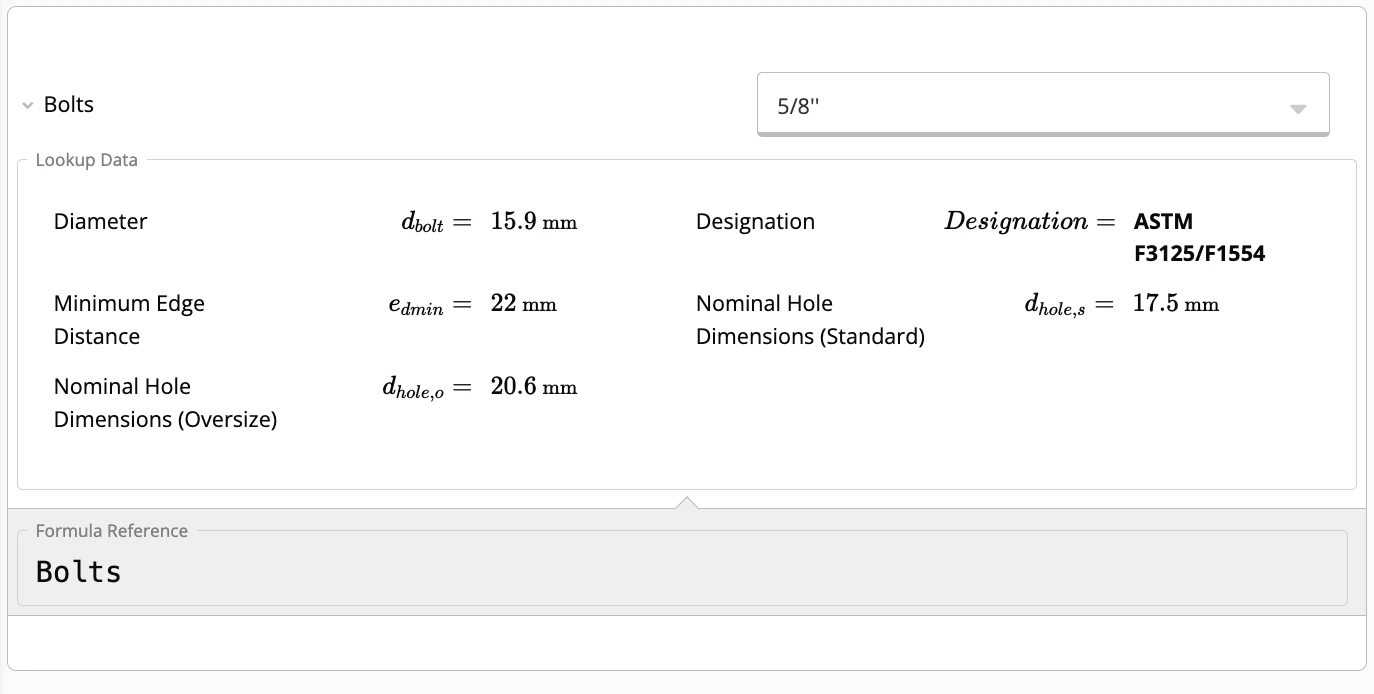
An Organisation Shared Table is a reusable data table that you can reference from a lookup widget in Calcs Builder. It lets you store properties for a family of elements (e.g. bolts, sections, anchors) and then pull those properties into your calculations. For example, the table below stores bolt properties such as:- Diameter
- Minimum edge distance
- Nominal hole dimensions
- And more
Step 1 – Build the Shared Table in Excel
1.1 Required Header Rows (A1–A4)
Your sheet must start with these rows:
Each column under these rows represents a property in your shared table.
1.2 What Each Row Means
-
label
User-friendly name shown in the table, e.g.Diameter,Nominal Dimension,Minimum Edge Distance. -
symbol
Symbol shown in the preview (LaTeX format).- Example: for bolt diameter you might use
d_{bolt}.
- Example: for bolt diameter you might use
-
units
Unit for that property (e.g.mm,kN,MPa). Can be left blank if not applicable. -
referenceID
Internal variable name used in equations and in theL()function.- Usually similar to the symbol but without LaTeX formatting.
- Example: symbol
d_{bolt}→ referenceIDd_bolt.
-
reference (optional)
Source of the data for that property.- Example:
AISC 360-22,CSA, or a specific handbook.
- Example:
Step 2 – Example Header Setup
Here is an example for a bolt shared table:- Each column is one property.
- Each row defines how that property is displayed and used.
Step 3 – Add Data Rows
Below the header rows, add the actual data:The first four rows define the structure. All rows below them are data entries.
steelBoltsCA.xlsx✅steel bolts CA.xlsx❌
Step 4 – Upload the Shared Table to Calcs Builder
-
Create or open a lookup widget

- Select “Organisation Shared Table”
- Click “Upload a shared table” and choose your Excel file.
-
Confirm it appears in the list

Step 5 – Using L() to Extract Values
To use values from your shared table inside equations, call the L() function.
5.1 Function Format
5.2 Example
If your lookup has:- Lookup referenceId:
Bolts - Property referenceID:
d_dim
Download Example File
If you want to test everything above, you can download the example file here: 👉 steelBoltsCA.xlsx (Google Sheets Link) You can download it as.xlsx and upload it into your Organisation Shared Tables to try the workflow yourself.