

Checking Out
Working with Existing Branches/Changing Between Branches
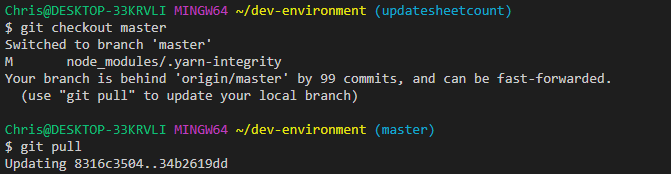
Remember, we never make changes directly to the Master branch, but we create branches off Master to do our work. We can swap between Master and feature branches by usinggit checkout {branchName}.
Examples:
git checkout master- Move to the Master branchgit checkout retainingWallsUSA- Move to the retaining walls branch
git pull before and after you swap to ensure you have the latest copy of everything on your local PC.
Command line workflow:
Creating a New Branch
If you are not looking at someone else’s work or swapping into a branch you’ve already been working on, you will need to create a new branch. To ensure this, and to avoid headaches later because you were working off old data:- Checkout master:
git checkout master - Pull master:
git pull - Create your new branch
-b to our checkout command to tell Git it’s new:
Making Changes and Submitting Your Work
Staging & Committing
Once you have successfully checked out a new or existing branch, you’ll be ready to start making changes. Provided your VScode and Git have been set up correctly, as you make changes, they will appear in the sidebar under ‘Changes’.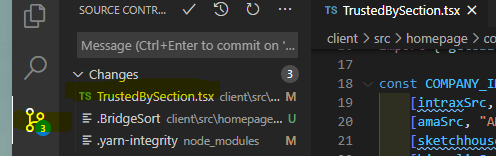
Understanding Commits
Github thinks of version control in terms of Commits - these are bundles of changes, with a reason behind them. Each branch can have multiple commits, all it means is we are grouping (Staging) each set of changes we make, and naming them.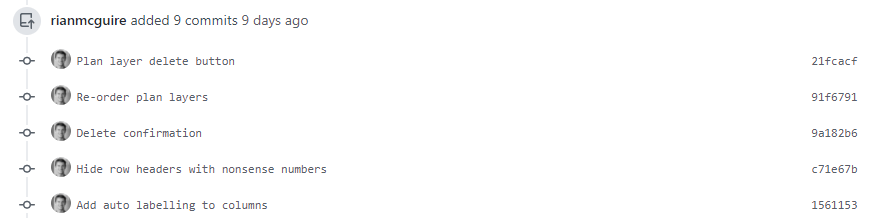
How to Stage Changes
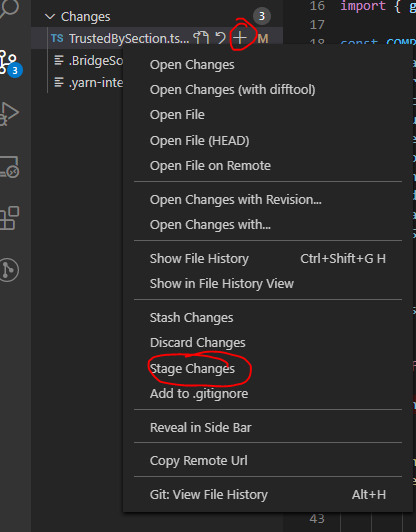
To stage some changes, you can either:- Click the + icon next to the file you want to stage
- Right click the file and click ‘Stage Changes’
How to Commit
As you stage your changes, they will move into a ‘Staged Changes’ dropdown, meaning they are ready to be Committed. To commit:- Enter a message in the dialog box above describing your changes (e.g.,
Amended calc count in trusted by section) - Click Ctrl + Enter (or Cmd + Enter on Mac) to submit and commit your changes
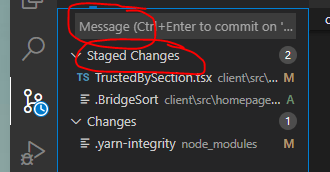
You can also right click and Unstage changes if you make a mistake, or click ‘Discard Changes’ if you want to irreversibly delete the new changes you’ve made and go back to the version you most recently committed.
Pushing to Github
If you are working on a new branch that has never been pushed before, you will get a fatal error (this is fine). Just copy and paste the message into the terminal and it will push properly.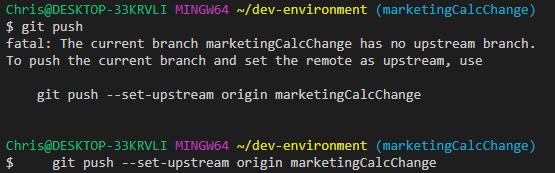
- Keep working and create new changes and commits
- Change to another branch without fear of issues
Submitting Your Work Back to Master (Pull Requests)
When you’re ready to submit your work back to master, you need to create a pull request. We will cover that in volume two of our git for dummies series when chris isn’t tired and thirsty.Common Issues
Coming Soon
Coming Soon
- Merge conflict
- Git reset/bad commit
- Can’t find branch (git fetch)
- Bad line endings (bad git for windows setup)
- Branching off a branch