> ## Documentation Index
> Fetch the complete documentation index at: https://calcs.com/docs/llms.txt
> Use this file to discover all available pages before exploring further.
# Dynamic Lookup Widget
> Create dynamic dropdowns with values that change based on conditions
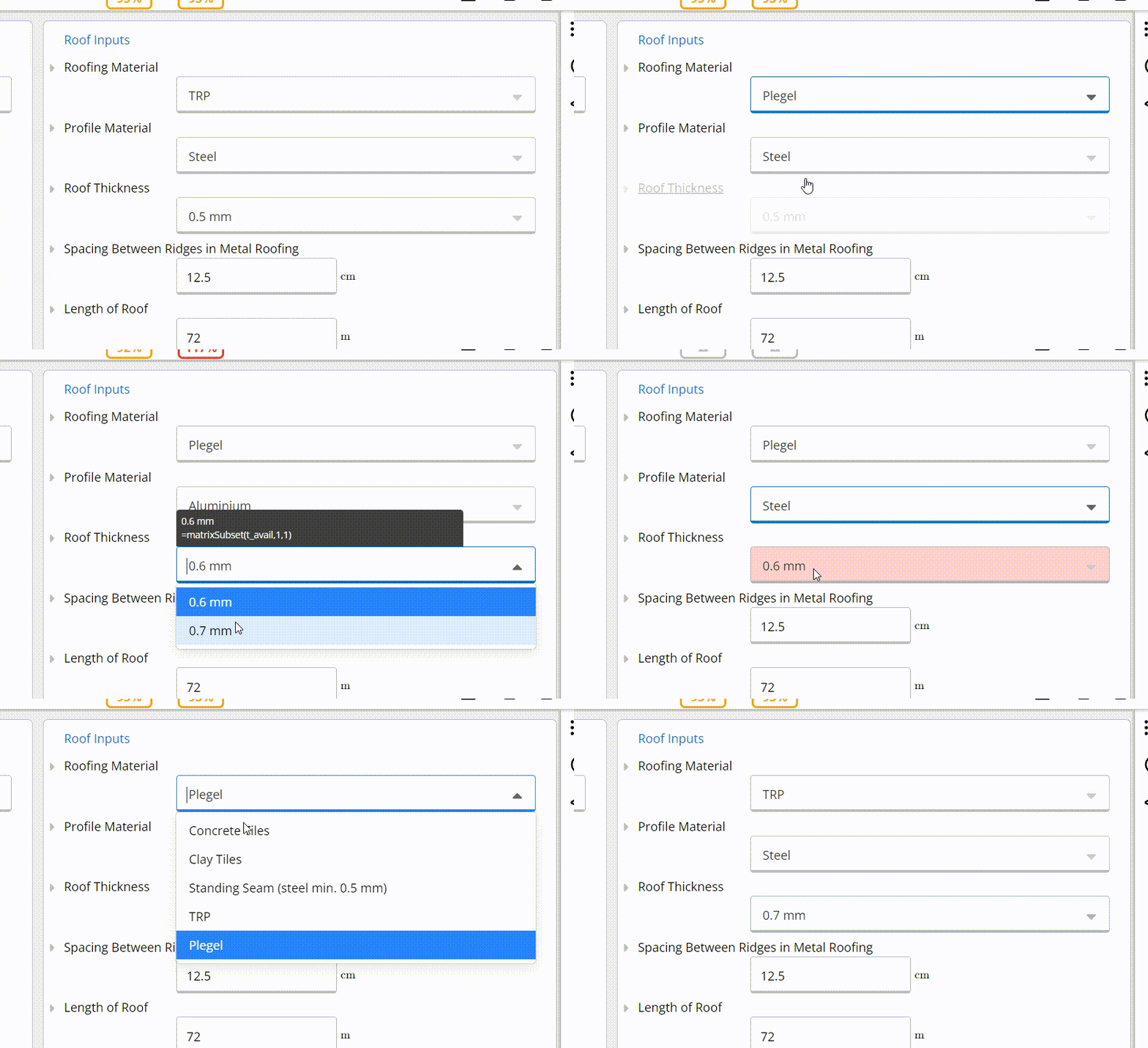 Dynamic Lookup Widgets are a powerful tool for allowing users to select values from a predefined set of options that can change based on conditions or other inputs. This guide walks through setting up and using dynamic lookup widgets.
## Setup Process
### 1. Creating the Options Data
Start by creating an equation widget or equation widget to store your options data
Organize your data in a matrix format, where each option set is separated into rows
**Example format**: `[[A,a], [B,b], [C,c]]`
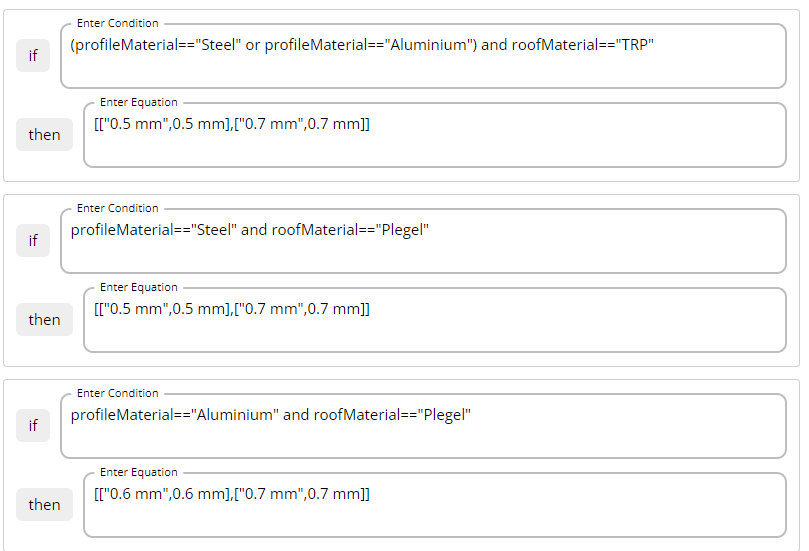
The Equation Widget would look like this:
Dynamic Lookup Widgets are a powerful tool for allowing users to select values from a predefined set of options that can change based on conditions or other inputs. This guide walks through setting up and using dynamic lookup widgets.
## Setup Process
### 1. Creating the Options Data
Start by creating an equation widget or equation widget to store your options data
Organize your data in a matrix format, where each option set is separated into rows
**Example format**: `[[A,a], [B,b], [C,c]]`
The Equation Widget would look like this:
 ### 2. Setting Up the Dynamic Widget
Add a new dynamic lookup widget to your template
In the data source field, input the ID of the equation widget you created in step 1. This ensures the dynamic widget pulls its options from the correct source
### 2. Setting Up the Dynamic Widget
Add a new dynamic lookup widget to your template
In the data source field, input the ID of the equation widget you created in step 1. This ensures the dynamic widget pulls its options from the correct source
 ### 3. Setting the Default Value
Decide on a default value that should be presented to the user initially
Use `matrixSubset` to select the first value from the matrix created in the equation widget
**Example**: `matrixSubset(t_avail, 0, 0)` selects the first element
### 3. Setting the Default Value
Decide on a default value that should be presented to the user initially
Use `matrixSubset` to select the first value from the matrix created in the equation widget
**Example**: `matrixSubset(t_avail, 0, 0)` selects the first element
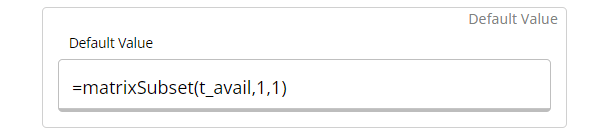 This formula selects the first element from the `t_avail` matrix to be the default value.
### 4. Testing and Final Adjustments
Test the widget extensively to confirm that values are displayed correctly according to the conditions you've set
Hide the equation widget to prevent user confusion and ensure a clean user interface
If any issues are identified during testing, make necessary adjustments to formulas, connections, or settings
## Data Structure Examples
### Simple Options Matrix
```javascript theme={null}
[
["Option 1", "value1"],
["Option 2", "value2"],
["Option 3", "value3"]
]
```
### Conditional Options Matrix
```javascript theme={null}
// Based on material type
material_type == "steel" ? [
["S275", 275],
["S355", 355],
["S420", 420]
] : [
["C20/25", 20],
["C25/30", 25],
["C30/37", 30]
]
```
## Common Use Cases
Different materials available based on design code or region
Available cross-sections filtered by material or size constraints
Load combination factors that vary by building type
Design parameters that change based on selected standard
## Best Practices
* Always provide a sensible default value using `matrixSubset`
* Hide the data source equation widget to keep the interface clean
* Test all possible conditions that affect the dropdown options
* Use descriptive labels for both display text and underlying values
* Consider performance impact with very large option sets
* Document the data structure in `authorNotes` for future developers
Ensure your data matrix structure is consistent across all conditions. Inconsistent matrix shapes can cause errors when the dynamic lookup widget tries to process the data.
## Matrix Functions
### Common Matrix Operations
* **`matrixSubset(matrix, row, col)`** - Extract specific values
* **`matrixLength(matrix)`** - Get number of rows
* **`matrixColumn(matrix, col)`** - Extract entire column
* **`matrixRow(matrix, row)`** - Extract entire row
### Example Implementation
```javascript theme={null}
// Data source widget (hidden)
material_type == "steel" ? [
["S275", 275, 430],
["S355", 355, 510]
] : [
["C20/25", 20, 25],
["C25/30", 25, 30]
]
// Default value in dynamic lookup
matrixSubset(material_options, 0, 0) // First option display text
// Accessing selected values in other widgets
matrixSubset(material_options, selected_index, 1) // Yield strength
matrixSubset(material_options, selected_index, 2) // Ultimate strength
```
This formula selects the first element from the `t_avail` matrix to be the default value.
### 4. Testing and Final Adjustments
Test the widget extensively to confirm that values are displayed correctly according to the conditions you've set
Hide the equation widget to prevent user confusion and ensure a clean user interface
If any issues are identified during testing, make necessary adjustments to formulas, connections, or settings
## Data Structure Examples
### Simple Options Matrix
```javascript theme={null}
[
["Option 1", "value1"],
["Option 2", "value2"],
["Option 3", "value3"]
]
```
### Conditional Options Matrix
```javascript theme={null}
// Based on material type
material_type == "steel" ? [
["S275", 275],
["S355", 355],
["S420", 420]
] : [
["C20/25", 20],
["C25/30", 25],
["C30/37", 30]
]
```
## Common Use Cases
Different materials available based on design code or region
Available cross-sections filtered by material or size constraints
Load combination factors that vary by building type
Design parameters that change based on selected standard
## Best Practices
* Always provide a sensible default value using `matrixSubset`
* Hide the data source equation widget to keep the interface clean
* Test all possible conditions that affect the dropdown options
* Use descriptive labels for both display text and underlying values
* Consider performance impact with very large option sets
* Document the data structure in `authorNotes` for future developers
Ensure your data matrix structure is consistent across all conditions. Inconsistent matrix shapes can cause errors when the dynamic lookup widget tries to process the data.
## Matrix Functions
### Common Matrix Operations
* **`matrixSubset(matrix, row, col)`** - Extract specific values
* **`matrixLength(matrix)`** - Get number of rows
* **`matrixColumn(matrix, col)`** - Extract entire column
* **`matrixRow(matrix, row)`** - Extract entire row
### Example Implementation
```javascript theme={null}
// Data source widget (hidden)
material_type == "steel" ? [
["S275", 275, 430],
["S355", 355, 510]
] : [
["C20/25", 20, 25],
["C25/30", 25, 30]
]
// Default value in dynamic lookup
matrixSubset(material_options, 0, 0) // First option display text
// Accessing selected values in other widgets
matrixSubset(material_options, selected_index, 1) // Yield strength
matrixSubset(material_options, selected_index, 2) // Ultimate strength
```