

What is a Widget?
Widgets are powerful tools used for representation, calculation, and organization of data in the calculator builder. You can think of widgets as the building blocks of every template. All widgets have a certain set of inputs (either entered by the user or obtained from another widget in the template), and a certain set of outputs which could be as simple as creating an interface for data entry or as complicated as a table with multiple columns and rows.Widget Main Functions
Input Interface
- Scalar data entry
- Data selection
- Table creation
Data Organization
- Structure complex data
- Manage relationships
- Control visibility
Calculations
- Mathematical computations
- Conditional statements
- Matrix manipulation
Visual Display
- Text and labels
- Images and diagrams
- Graphs and charts
Widget Interfaces
Widgets are built to have two interfaces:Preview Mode
For end users - summarizes important information meant for the user to see, comprehend, and input data.Pause Mode
For engineers - to edit their widgets in the template editor.Widget Components in Preview Mode
When expanded, widgets typically display:- Widget Description - Explanation of the widget’s purpose
- Formula Reference - Mathematical formulas used
- Reference Image - Visual aids and diagrams
- Checks - Validation and verification rules
Widget Components in Pause Mode
All widgets share these common sections:- Widget identifiers - Label, symbol, referenceId
- Default values - Initial values
- Visible if - Visibility conditions
- Widget core function - Type-specific functionality
- Checks - Validation rules
- Description - User-facing explanation
- References - Code/standard references
- Reference Image - Supporting visuals
- Author Notes - Internal documentation
- Other Options - Export, visibility settings
Widget Selection Process
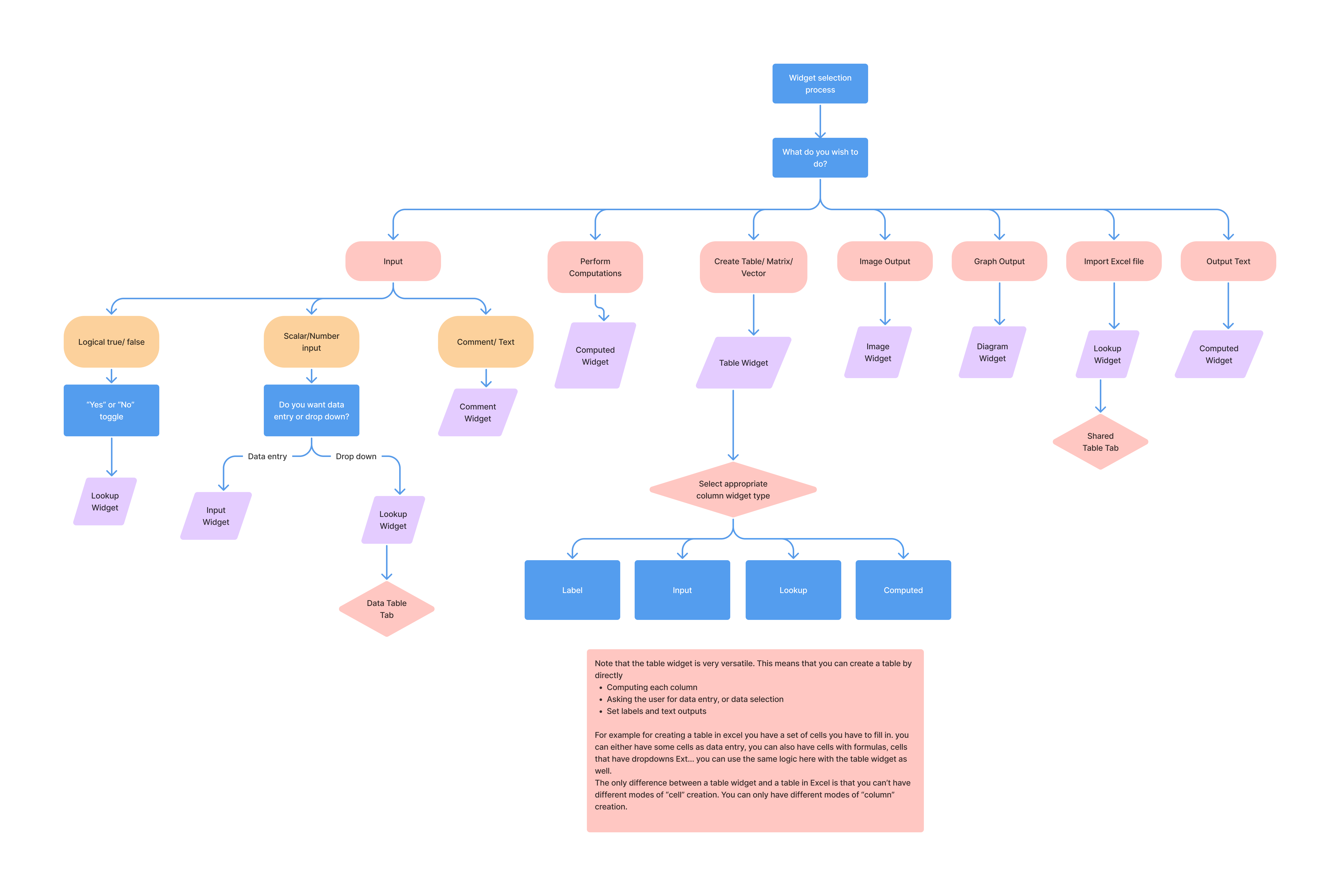
Available Widget Types
Input Widget
Primary user input field for data entry
Equation Widget
Performs calculations and displays results
Lookup Widget
Dropdown selection from predefined options
Table Widget
Multi-row, multi-column data management
Section Widget
Organizes widgets into logical groups
Diagram Widget (Legacy)
Pre-built diagrams for common engineering visualizations
Custom Diagram Widget
Creates interactive diagrams with custom elements
Image Widget
Displays static or conditional images
Remote Widget
Connects to external solvers (FEA)
Widget Management
Adding Widgets
Drag the widget type from the upper left side of the builder in “Pause” mode to create a new widget.Editing Widgets
Use the buttons at the upper right corner of every widget to:- Edit properties
- Delete widget
- Duplicate widget
- Move widget
- View information
Display Options
At the bottom of each widget (Other Options), you can control:Display Settings
Display Settings