> ## Documentation Index
> Fetch the complete documentation index at: https://calcs.com/docs/llms.txt
> Use this file to discover all available pages before exploring further.
# Template UX Rules and Functionality
> Guidelines for template user experience, load combinations, material changes, and unit handling
This guide covers important rules and functionality considerations for creating templates with excellent user experience.
## Material Changes
Calcs.com offers users the ability to change from one material to another. This functionality allows engineers to swap between different materials (e.g., timber to steel) while preserving appropriate data.
A public article on how users can change materials is available at [support.calcs.com](https://support.calcs.com/article/25-how-to-change-materials-for-example-swap-templates-between-timber-and-steel).
### Widget Support for Material Changes
| Widget Type | Supported? | Comments |
| ----------- | ---------- | -------------------------------------- |
| **Input** | ✅ Yes | Full support for material changes |
| **Table** | ✅ Yes | Same table shape maintained |
| **Lookup** | ❌ No | Not transferred during material change |
### Frequently Asked Questions
**Q: Can you change between ASD & LRFD standards?**
**A:** Yes, however, lookups are not supported so the member selector will not be transferred.
## Load Combinations
### Philosophy
The way load combinations are implemented follows these key principles:
The set of load combinations used is the same for an entire project. Load combinations can only be set in Project Defaults, not overridden in individual sheets.
We provide reasonably common load combination sets that users can select from, but also allow completely custom load combinations.
All factoring of loads per load combinations happens in the solver, regardless of whether FEA is needed in a given template.
Load factors are split between project and template levels - how to apply factors is defined at project level, but the values are defined at template level.
### Implementation Structure
Working from project level downwards, here's how load combinations are implemented:
#### Project Defaults
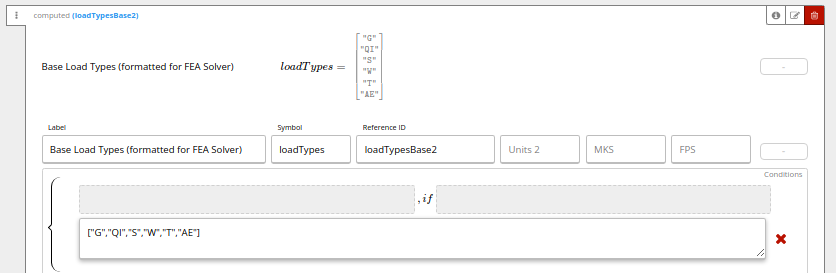
**1. Hard-coding Load Types: `loadTypesBase2`**
We hard-code the load types in Project Defaults and pass them through. When we eventually allow user customization of load types, the structure is already in place.
 * `combConc2`: Hard-coded load types that should always be combined into a single load type
* Currently used in Australia and New Zealand for distributed vs concentrated live loads
* Example: `["Q_dist", "Q_conc"]`
**2. Setting Load Combinations and Factor Application: `LCs_str_type`**
* `combConc2`: Hard-coded load types that should always be combined into a single load type
* Currently used in Australia and New Zealand for distributed vs concentrated live loads
* Example: `["Q_dist", "Q_conc"]`
**2. Setting Load Combinations and Factor Application: `LCs_str_type`**
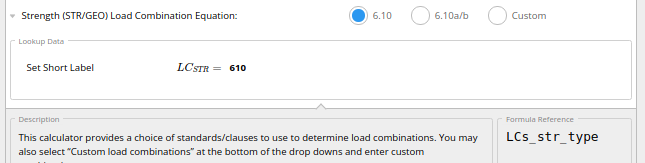 This sets both:
* `LCs_str2`: The load combinations to be passed to the solver in every sheet
* `LCFact_str2`: The set of mappings for how to apply load combination factors
**3. Default Factor Values: `LCFact_type`**
The set of load combination factors to use (e.g., various ψ factors in Eurocode that can be customized in National Annexes).
This sets both:
* `LCs_str2`: The load combinations to be passed to the solver in every sheet
* `LCFact_str2`: The set of mappings for how to apply load combination factors
**3. Default Factor Values: `LCFact_type`**
The set of load combination factors to use (e.g., various ψ factors in Eurocode that can be customized in National Annexes).
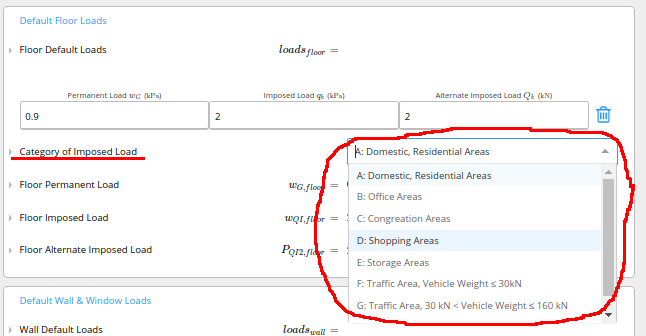
 **4. Default Factor Selections**
The default category of imposed load to use - this can be overridden by individual templates but provides sensible defaults for most users.
**4. Default Factor Selections**
The default category of imposed load to use - this can be overridden by individual templates but provides sensible defaults for most users.
 #### Template Level Implementation
**1. Pass-Through Values**
Templates pass through these values from Project Defaults unchanged:
* Load types: `loadTypesBase2`
* Concurrent load types: `combConc2`
* Load combinations: `LCs_str2`
* Factor application instructions: `LCFact_str2`
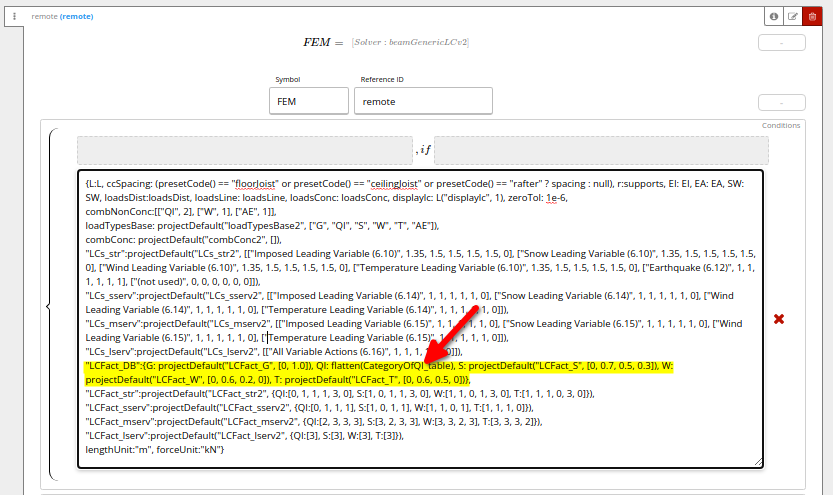
**2. Template-Specific Values: `LCFact_DB`**
Load combination factor values can be passed through or modified within individual templates.
#### Template Level Implementation
**1. Pass-Through Values**
Templates pass through these values from Project Defaults unchanged:
* Load types: `loadTypesBase2`
* Concurrent load types: `combConc2`
* Load combinations: `LCs_str2`
* Factor application instructions: `LCFact_str2`
**2. Template-Specific Values: `LCFact_DB`**
Load combination factor values can be passed through or modified within individual templates.
 ### Load Combination Factors: `LCFact_*`
#### Structure
The instructions on **how to apply** load combination factors are separate from the **values** of the factors.
#### Values of Load Combination Factors: `LCFact_DB`
Factor values MUST be an array with at least 2 items. The first item is always ignored and should be set to `0`.
Two types of load combination factors:
1. **Load-type specific factors**: Set as `load_type: [array]`
2. **Universal factors**: Set as `all_x: [array]` (applied to all load types)
#### How to Apply Factors: `LCFact_str`
Instructions on factor application passed in `LCFact_str` parameter:
* MUST be an array of length equal to the number of load combinations
* Values are indices for corresponding values in `LCFact_DB` (first item is index=0)
#### Example: Snow Load Combination Factor
**Setting up factor values in `LCFact_DB`:**
```
S: [0, 0.7, 0.5, 0.3]
```
**Applying factors in `LCFact_str`:**
```
S: [1, 0, 1, 1, 3, 0]
```
This applies:
* 0.7 factor to load combinations 1, 3, and 4
* 0.3 factor to load combination 5
* No factor to load combinations 2 and 6
### Load Combinations FAQ
**Why is this so complicated?**
We used to have separate solvers for each building standard with hard-coded load combinations. This was unwieldy and required dev deploys for bug fixes. We unified everything into one solver, but the price is increased parameter complexity.
**Why use `LCFact_*` instead of multiplying factors directly into `LCs_*`?**
For most load factors, whether to apply them and what specific value to use can vary within a building. Load combinations are set at project level, but factors can be adjusted in each sheet. For example:
* Most of a house might have 'residential/domestic' character of imposed load
* The roof will have a different character of imposed load
* Stairs might be different for duplex houses
## Units System
### Unit Field Conventions
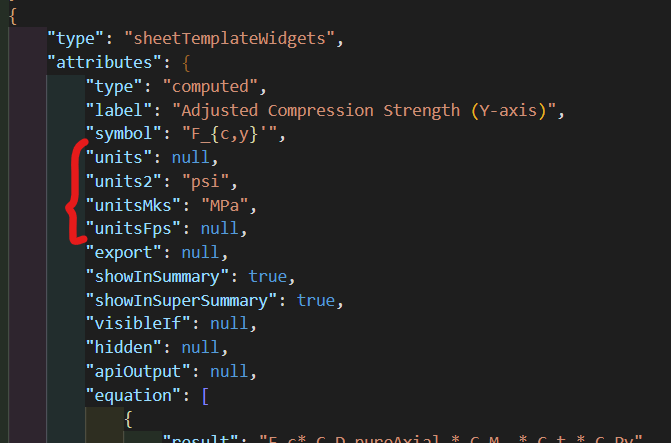
[This video](https://drive.google.com/file/d/1ToiaO9k8fie0xR7-fctVXXaTdS0-kRx0/view?ts=63b60463) explains the main differences between unit fields: `units`, `units2`, `unitsMks`, `unitsFps`.
In the US, we use the following convention:
Forces in **kips**
* Forces in **kN**
* Length in **mm**
* Stress in **MPa**
* Loads in **kPa**
Forces in **lb**
### Load Combination Factors: `LCFact_*`
#### Structure
The instructions on **how to apply** load combination factors are separate from the **values** of the factors.
#### Values of Load Combination Factors: `LCFact_DB`
Factor values MUST be an array with at least 2 items. The first item is always ignored and should be set to `0`.
Two types of load combination factors:
1. **Load-type specific factors**: Set as `load_type: [array]`
2. **Universal factors**: Set as `all_x: [array]` (applied to all load types)
#### How to Apply Factors: `LCFact_str`
Instructions on factor application passed in `LCFact_str` parameter:
* MUST be an array of length equal to the number of load combinations
* Values are indices for corresponding values in `LCFact_DB` (first item is index=0)
#### Example: Snow Load Combination Factor
**Setting up factor values in `LCFact_DB`:**
```
S: [0, 0.7, 0.5, 0.3]
```
**Applying factors in `LCFact_str`:**
```
S: [1, 0, 1, 1, 3, 0]
```
This applies:
* 0.7 factor to load combinations 1, 3, and 4
* 0.3 factor to load combination 5
* No factor to load combinations 2 and 6
### Load Combinations FAQ
**Why is this so complicated?**
We used to have separate solvers for each building standard with hard-coded load combinations. This was unwieldy and required dev deploys for bug fixes. We unified everything into one solver, but the price is increased parameter complexity.
**Why use `LCFact_*` instead of multiplying factors directly into `LCs_*`?**
For most load factors, whether to apply them and what specific value to use can vary within a building. Load combinations are set at project level, but factors can be adjusted in each sheet. For example:
* Most of a house might have 'residential/domestic' character of imposed load
* The roof will have a different character of imposed load
* Stairs might be different for duplex houses
## Units System
### Unit Field Conventions
[This video](https://drive.google.com/file/d/1ToiaO9k8fie0xR7-fctVXXaTdS0-kRx0/view?ts=63b60463) explains the main differences between unit fields: `units`, `units2`, `unitsMks`, `unitsFps`.
In the US, we use the following convention:
Forces in **kips**
* Forces in **kN**
* Length in **mm**
* Stress in **MPa**
* Loads in **kPa**
Forces in **lb**
 ## Best Practices
* Design load combinations at the project level for consistency across all sheets
* Use template-level factor customization only when values truly vary by calculation type
* Test material change functionality early in template development
* Follow established unit conventions for your region
* Document any deviations from standard approaches
## Best Practices
* Design load combinations at the project level for consistency across all sheets
* Use template-level factor customization only when values truly vary by calculation type
* Test material change functionality early in template development
* Follow established unit conventions for your region
* Document any deviations from standard approaches