> ## Documentation Index
> Fetch the complete documentation index at: https://calcs.com/docs/llms.txt
> Use this file to discover all available pages before exploring further.
# Git Introduction
> Understanding Git version control for Calcs.com development
This guide assumes you are using VScode, and have been shown how to use the terminal, with Git bash setup and configured.
## The Basics
Github is a version control tool used by software development teams to share and collaborate on work. It is a little bit like Dropbox in that your work is 'synced' from the cloud, but different because unlike Dropbox where everyone shares the exact same copy, Github allows each person to download the central copy (Master) and create their own private copy (Branches).
This is important because:
* Teams can all be working on the app at the same time
* No worry about conflicting or overwriting each other's work by accident
* Git syncing is optional rather than automatic
* We can only add changes and versions when we want to
* Better tracking of what has changed
## Understanding Branch and Master
 Think of a tree with branches:
* **Master** - The tree trunk, the center of what we do. In practical terms, the Master is the latest published or released version of the app (i.e. what our customers see)
* **Branches** - Work off of branches to prevent breaking things. A branch is essentially a snapshot or copy of the Master at the time it was taken
### Key Concepts
* **Pull Request** - The process where someone else checks your branch before confirming it can go back into the Master branch
* **Merging** - When your changes will all be merged into the Master version that everyone uses from now on
Think of a tree with branches:
* **Master** - The tree trunk, the center of what we do. In practical terms, the Master is the latest published or released version of the app (i.e. what our customers see)
* **Branches** - Work off of branches to prevent breaking things. A branch is essentially a snapshot or copy of the Master at the time it was taken
### Key Concepts
* **Pull Request** - The process where someone else checks your branch before confirming it can go back into the Master branch
* **Merging** - When your changes will all be merged into the Master version that everyone uses from now on
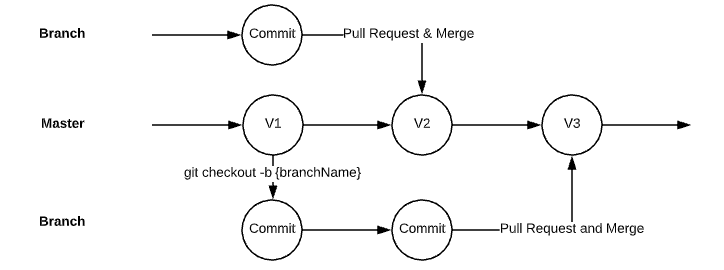 Our Master is essentially a straight line, with branches (new features and bug fixes) coming off of it. When one of these branches is merged back in, Master goes up a version. From then on, anyone that checks out Master will get that version of Master.
We *never* edit Master directly, and in fact if you try to, you'll encounter errors. Always make sure you are checked out on a branch before doing new work.
### Best Practices
* Create a new branch from the latest version of Master every time you work on something new
* Create one branch per feature rather than adding everything into one branch
* This makes it easier and faster to review and merge things back in
## The Git Karate Kid - Push and Pull
Git works in terms of Pushing and Pulling. Unlike Dropbox which automatically syncs our data to the server, Github keeps a copy on the server (Remote) that is separate from your local copy.
### Pull
* Use `git pull` to retrieve data from the Github server and download it to your computer
* Github will complain loudly if your local changes conflict with the server
### Push
* Use `git push` to back up our work and send it to Github
* Must **Stage** and **Commit** your work before pushing
Remember, if you don't Push your work, Github will never be updated, so your work won't be online, and if you lose your PC, your work will go with it. Backup your work and push regularly!
Our Master is essentially a straight line, with branches (new features and bug fixes) coming off of it. When one of these branches is merged back in, Master goes up a version. From then on, anyone that checks out Master will get that version of Master.
We *never* edit Master directly, and in fact if you try to, you'll encounter errors. Always make sure you are checked out on a branch before doing new work.
### Best Practices
* Create a new branch from the latest version of Master every time you work on something new
* Create one branch per feature rather than adding everything into one branch
* This makes it easier and faster to review and merge things back in
## The Git Karate Kid - Push and Pull
Git works in terms of Pushing and Pulling. Unlike Dropbox which automatically syncs our data to the server, Github keeps a copy on the server (Remote) that is separate from your local copy.
### Pull
* Use `git pull` to retrieve data from the Github server and download it to your computer
* Github will complain loudly if your local changes conflict with the server
### Push
* Use `git push` to back up our work and send it to Github
* Must **Stage** and **Commit** your work before pushing
Remember, if you don't Push your work, Github will never be updated, so your work won't be online, and if you lose your PC, your work will go with it. Backup your work and push regularly!